
The Procreate + AI Fashion Rendering Workflow: A Step-by-Step Guide for Fashion SKetch
If you already use Procreate for fashion illustration, digital fashion design, garment sketching, apparel concept development, you probably know the feeling: your sketches communicate the idea, but they don't always communicate the garment.
Fashion Drawings can only go so far. It's often difficult to visualize silhouette, volume, fabric, proportion, or styling without spending hours rendering everything manually.
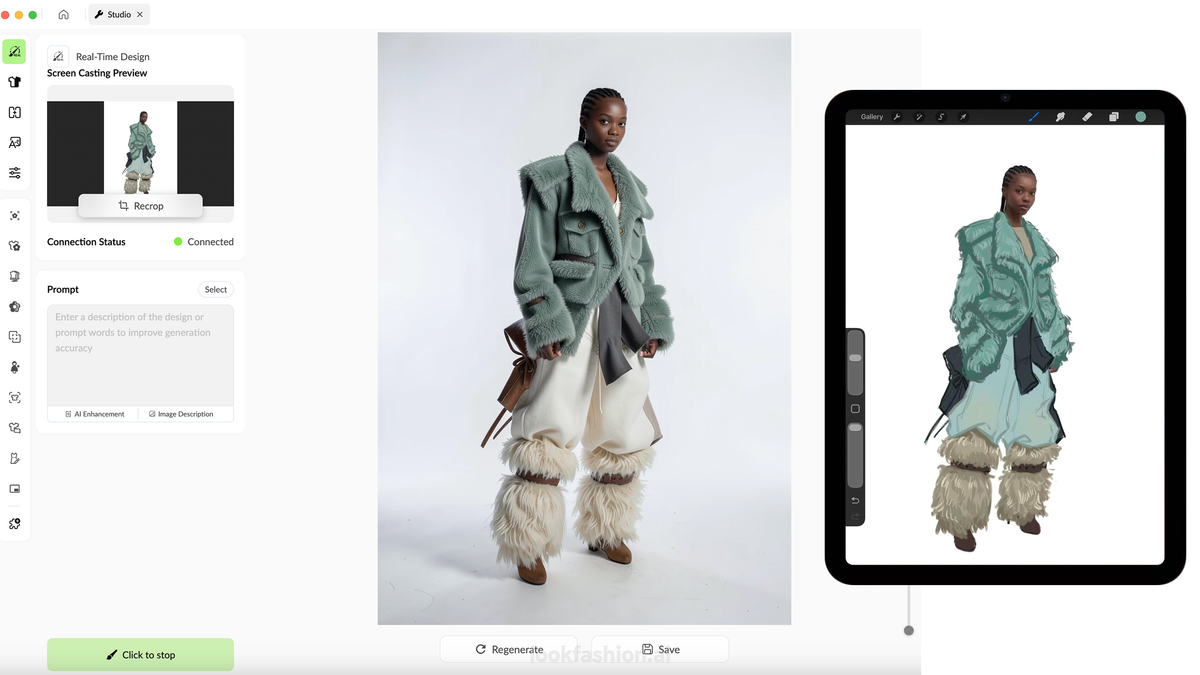
That's why more fashion designers are turning to real-time AI fashion rendering tools like LOOK AI—not to replace sketching or generate ideas for them, but to visualize concepts as they draw. By combining Procreate with LOOK AI's Real-Time Design workflow, your sketches evolve into realistic fashion visuals in real time, creating a seamless creative process where every rendering is guided entirely by your own drawing and design intent.
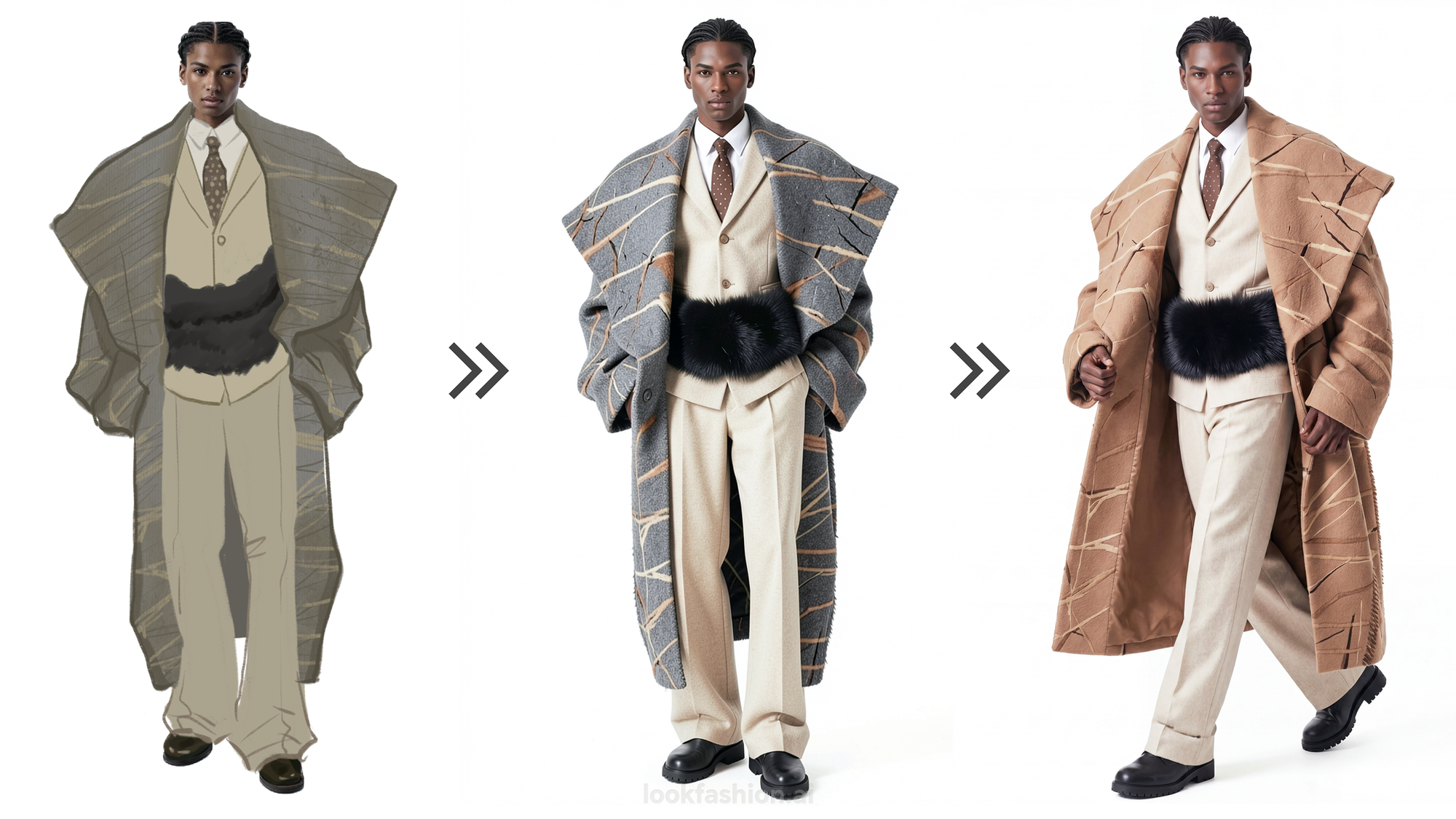
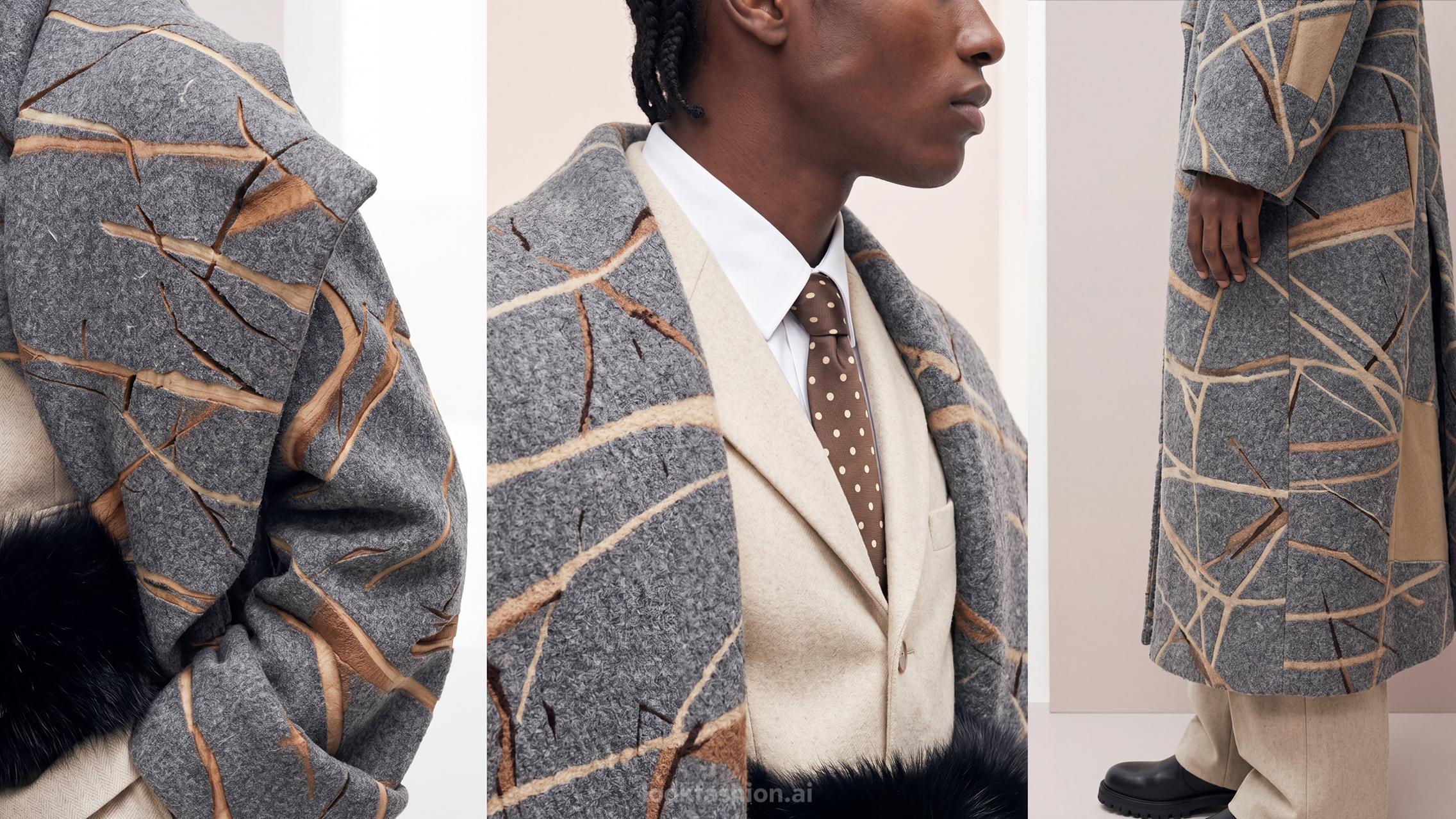
That's the core of this workflow: you bring the design vision, LOOK AI brings the rendering power.
About Real-Time Design
LOOK AI's Real-Time Design feature makes this workflow possible by combining live AI fashion rendering, real-time fashion visualization, digital garment rendering, and sketch-to-fashion rendering into a single creative experience. It connects your iPad and laptop over the same Wi-Fi network, mirroring your Procreate canvas live into LOOK AI's interface. As you draw, adjust, or iterate in Procreate, LOOK AI reads the changes in real time — no exporting, no file transfers, no breaking your workflow to switch contexts. The result is a live creative loop where your hand-drawn input and AI-rendered output exist side by side, updating together.
Setting Up: Connecting Procreate to LOOK AI
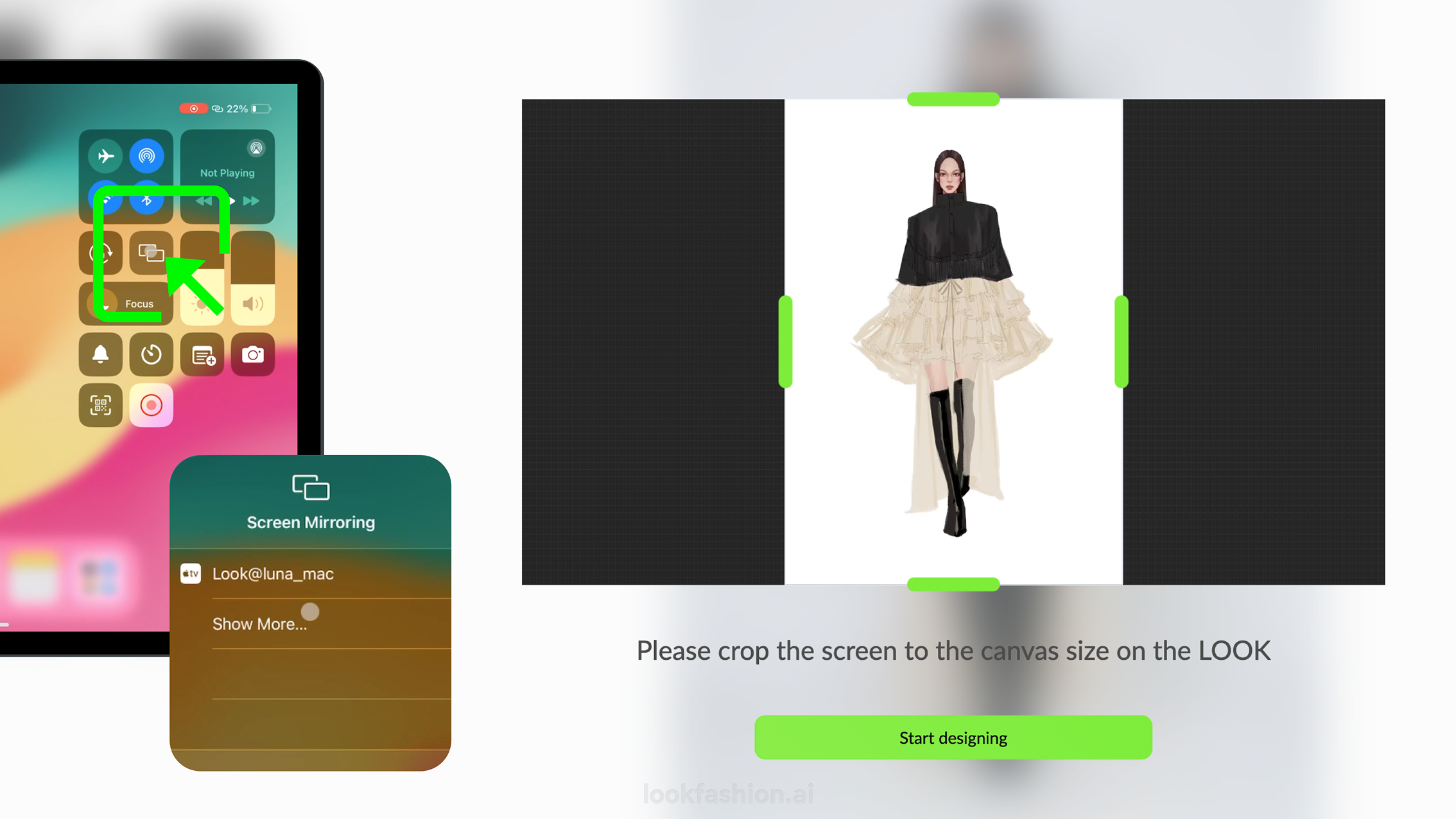
Before running any of the workflows below, you'll need to connect your iPad (running Procreate) to LOOK AI on your laptop. This one-time setup uses LOOK AI's Real-Time Design feature, which works via iPad screen mirroring. You'll need both devices on the same Wi-Fi network.
What you need:
An iPad with Procreate installed
A laptop with LOOK AI open at lookfashion.ai
Both devices connected to the same Wi-Fi network (if there's no signal, connect both to a mobile hotspot)
Step 1 — Open Real-Time Design in LOOK AI. On your laptop, open LOOK AI and select Real-Time Design from the left sidebar. The interface will prompt you to connect your iPad via screen mirroring.
Step 2 — Enable Screen Mirroring on your iPad. On your iPad, swipe down from the top-right corner to open Control Center. Tap the Screen Mirroring icon (two overlapping rectangles). A list of available devices will appear — select Look@xxx (your LOOK AI session). Your iPad screen will now mirror to the LOOK AI interface on your laptop.
Step 3 — Enable Project Canvas in Procreate. Open Procreate. Tap the wrench icon (Actions) in the top-left corner, navigate to the Canvas tab, and toggle on Project Canvas. Your Procreate canvas will now stream live into LOOK AI's Real-Time Design view.
Step 4 — Crop the screen in LOOK AI. On your laptop, use the crop handles in the Screen Casting Preview to frame the view so only your drawing canvas is visible — remove as much of Procreate's UI (toolbars, panels) as possible. Once cropped, click Start Designing.
You're connected. Anything you draw in Procreate now feeds into LOOK AI in real time.
Workflow 1: From Sketch to Garment Rendering
This is the most direct path and a good starting point if you're new to LOOK AI.
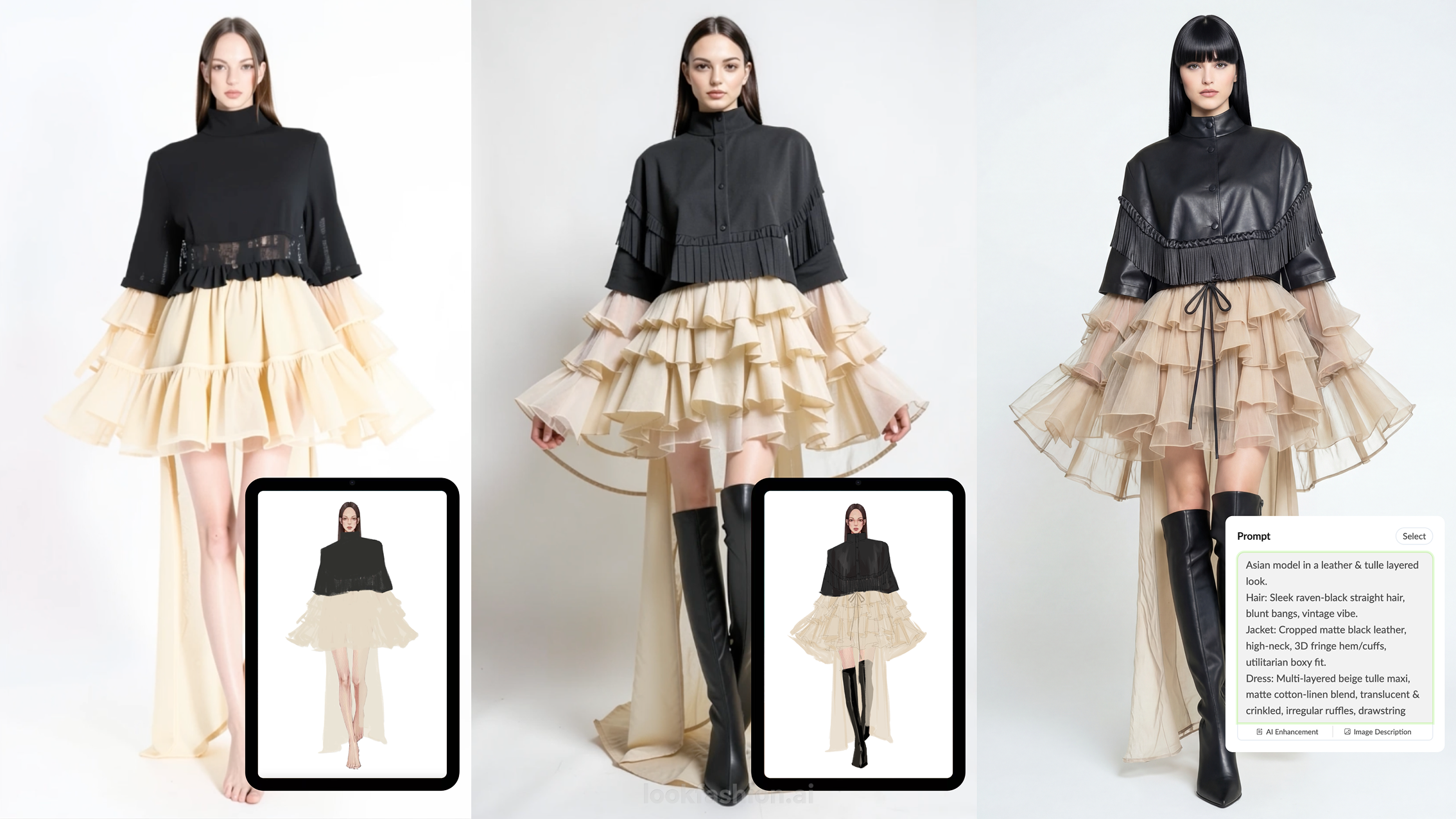
Step 1 — Draw your fashion sketch in Procreate. Start with any level of sketch. A loose silhouette, gesture drawing, rough proportion study, or partially finished fashion concept is enough for LOOK AI to understand your design direction. As your drawing evolves inside Procreate, LOOK AI updates the visualization in real time, allowing you to explore different fashion concepts long before the sketch is finished.
Step 2 — Block in your colorway as you sketch. If you already have a color direction in mind, start filling your garment with flat colors while drawing in Procreate. Whether it's a monochrome palette, seasonal colorway, or brand signature colors, these color blocks give LOOK AI clearer visual guidance for real-time AI fashion rendering. As you continue sketching, the rendered garment updates alongside your drawing.
Step 3 — Add a text prompt to supplement your sketch. With your sketch live in LOOK AI's Real-Time Design panel, add a text prompt to describe what the sketch doesn't show: fabric weight, occasion, styling context. "Lightweight linen, relaxed tailoring, resort season" is more useful than "make it look good." LOOK AI reads both your drawing and your words together.
Step 4 — Review the output and note what to adjust. The first output is your starting point, not your final result. Look at it as a design conversation: what did LOOK AI interpret correctly? What did it miss or change? Use that to either refine your sketch in Procreate — the update registers immediately — or adjust your prompt before generating again.
Workflow 2: The Iterative Loop
The most common mistake in AI-assisted design workflows is treating the process as a single pass: draw, generate, done. Fashion designers, apparel designers, fashion students, and creative teams get the most out of LOOK AI by treating AI as a fashion visualization tool rather than a one-click generator.
Here's what that loop looks like in practice:
Round 1: Draw your sketch in Procreate → review the LOOK AI output → identify the specific element that isn't working (collar proportion, sleeve volume, overall silhouette).
Back to Procreate: Make a targeted edit to your sketch. Not a full redraw — just fix the element you identified. Because the connection is live, LOOK AI picks up the change immediately.
Round 2: Generate again → compare the new output with the previous one. Is the change reflected? Did fixing one thing reveal another issue?
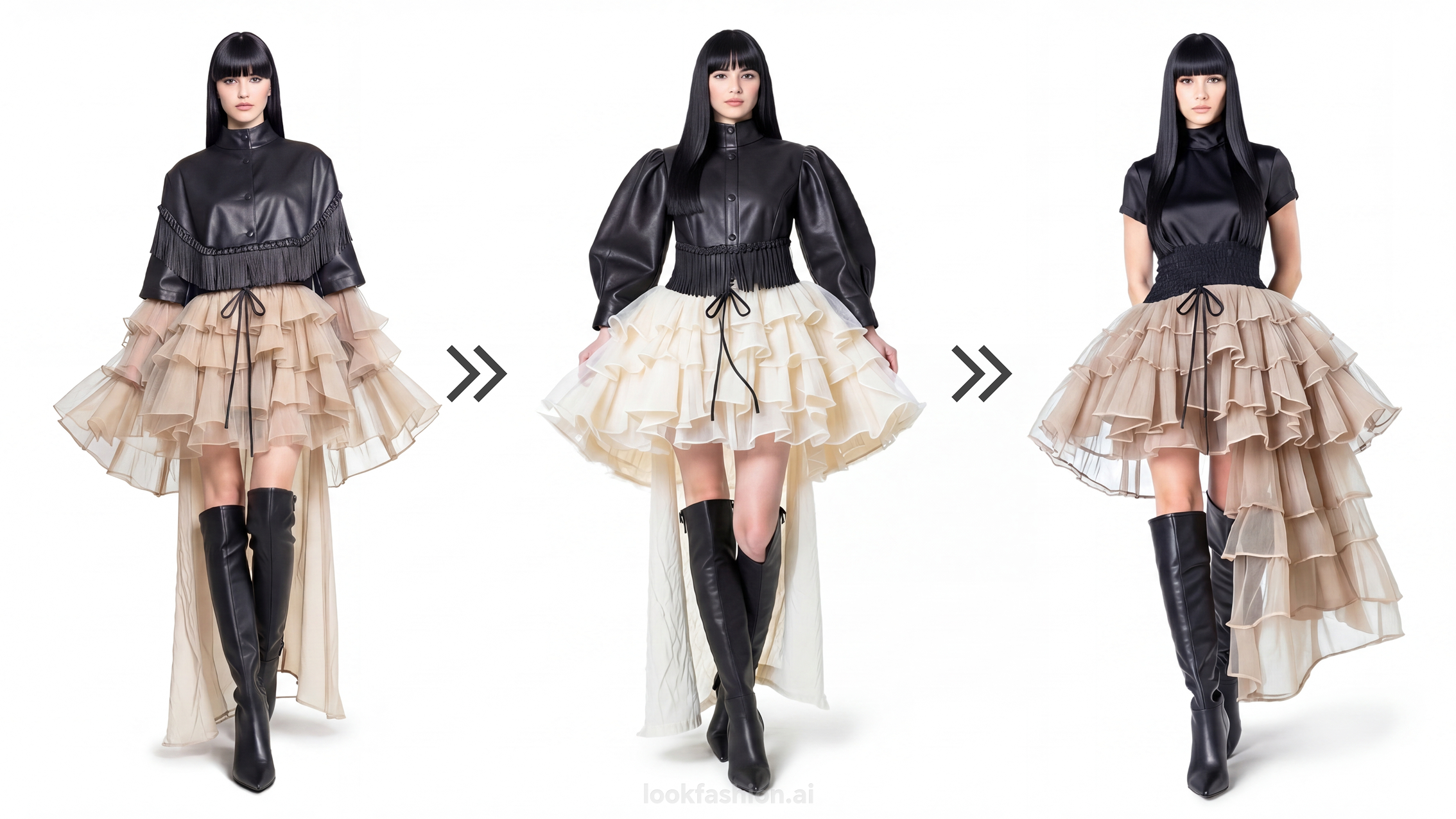
Repeat until the design is resolved.
This loop is especially useful for proportion work. AI rendering makes proportion problems immediately visible in a way that a flat sketch sometimes obscures. You might not notice that a sleeve is too long until you see it rendered on a figure. Once you do, you adjust in Procreate and check again — the same process you'd use in a fitting, compressed into a digital workflow.
Workflow 3: Applying a Procreate Pattern to a Garment
This is where the combination becomes especially powerful for print-focused designers. You've drawn a pattern in Procreate — a geometric repeat, a painterly all-over, a placement graphic. Now you want to see it on an actual garment. There are two routes in LOOK AI depending on what you're going for.
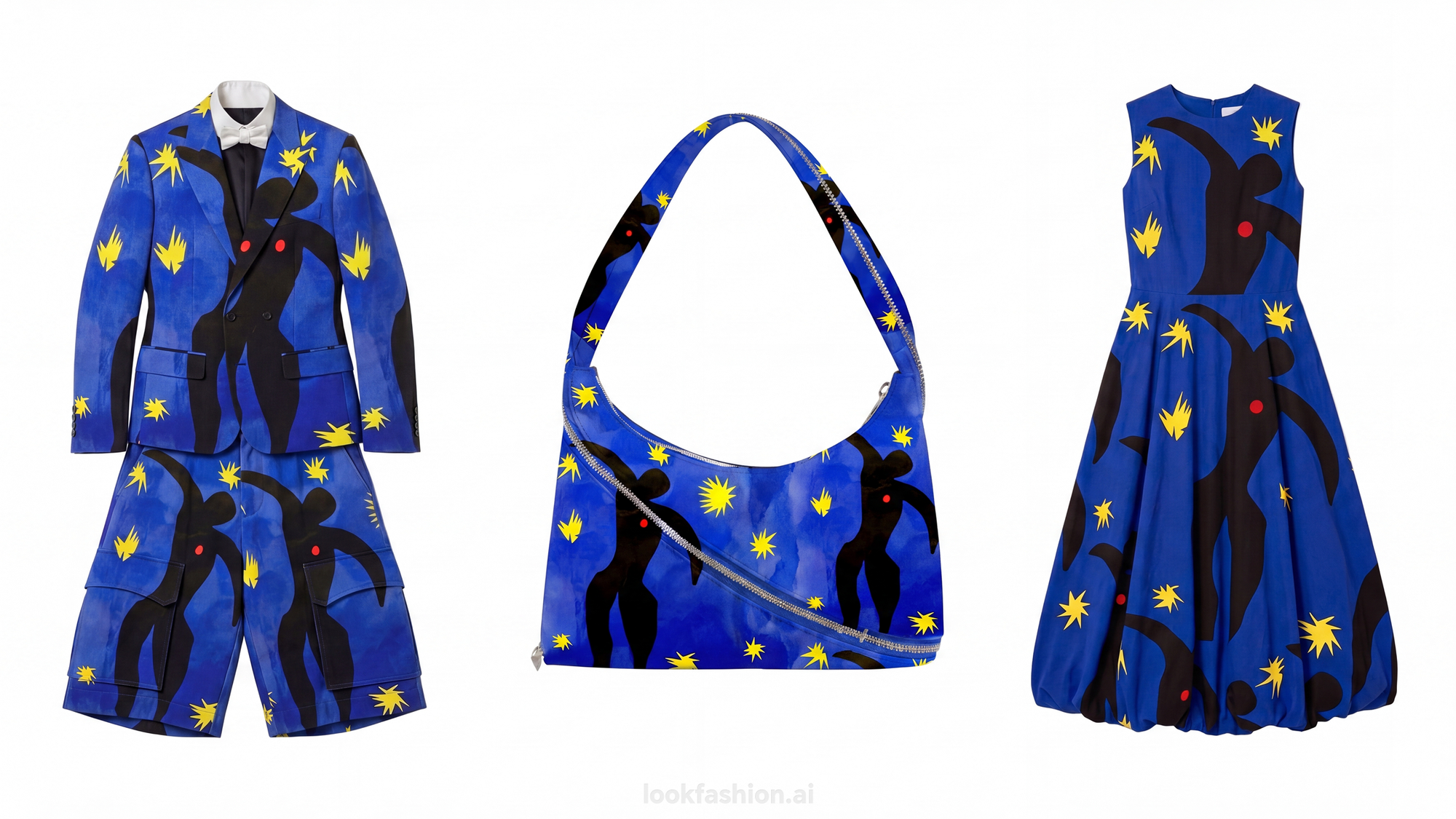
Route A — Full coverage print with Flat Sketch × Print
Use this when you want your pattern applied across an entire garment as an all-over print.Open the Flat Sketch × Print feature in LOOK AI. Your live Procreate canvas streams in as the pattern source. Select or sketch the garment silhouette you want the print applied to, then generate. LOOK AI maps your pattern across the full surface of the piece — a bag, a hoodie, a pair of wide-leg trousers, whatever the silhouette calls for.
Route B — Placed print using the Edit feature
Use this when you want the pattern applied to a specific location on the garment — a chest placement, a sleeve panel, a back graphic — rather than as an all-over.
In LOOK AI's Edit feature, describe in your text prompt exactly where you want the pattern placed. "Apply the geometric pattern as a chest placement in the middle" gives LOOK AI a precise brief. Your Procreate canvas provides the visual reference; the prompt directs the placement.
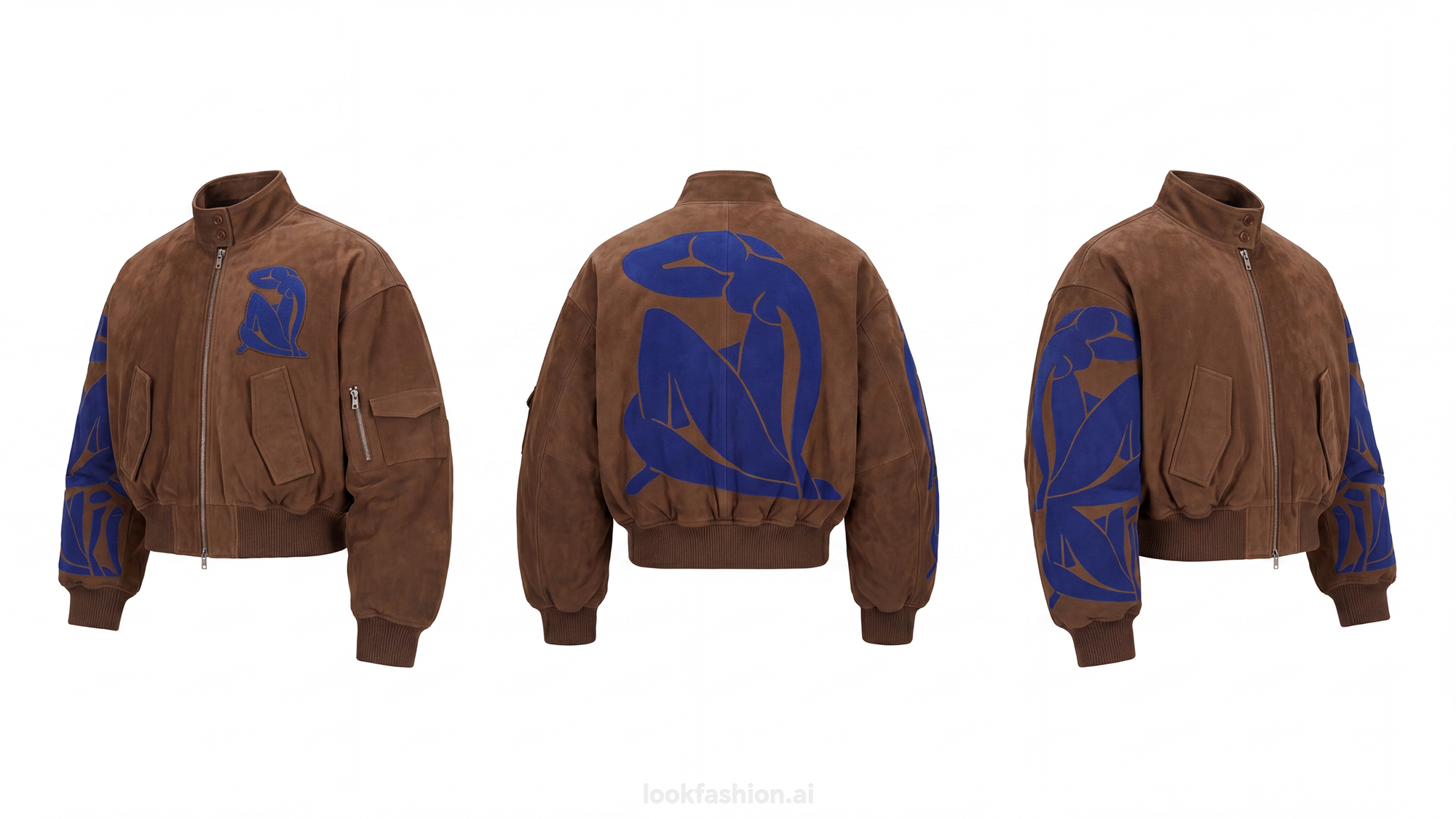
This approach gives you more compositional control and is closer to how placed print design actually works in production. This workflow is ideal for graphic T-shirts, hoodie graphics, logo placement, embroidery previews, fashion branding, and placement print design.
A Note on What Each Tool Should Own
This workflow functions best when you respect what each tool does well.
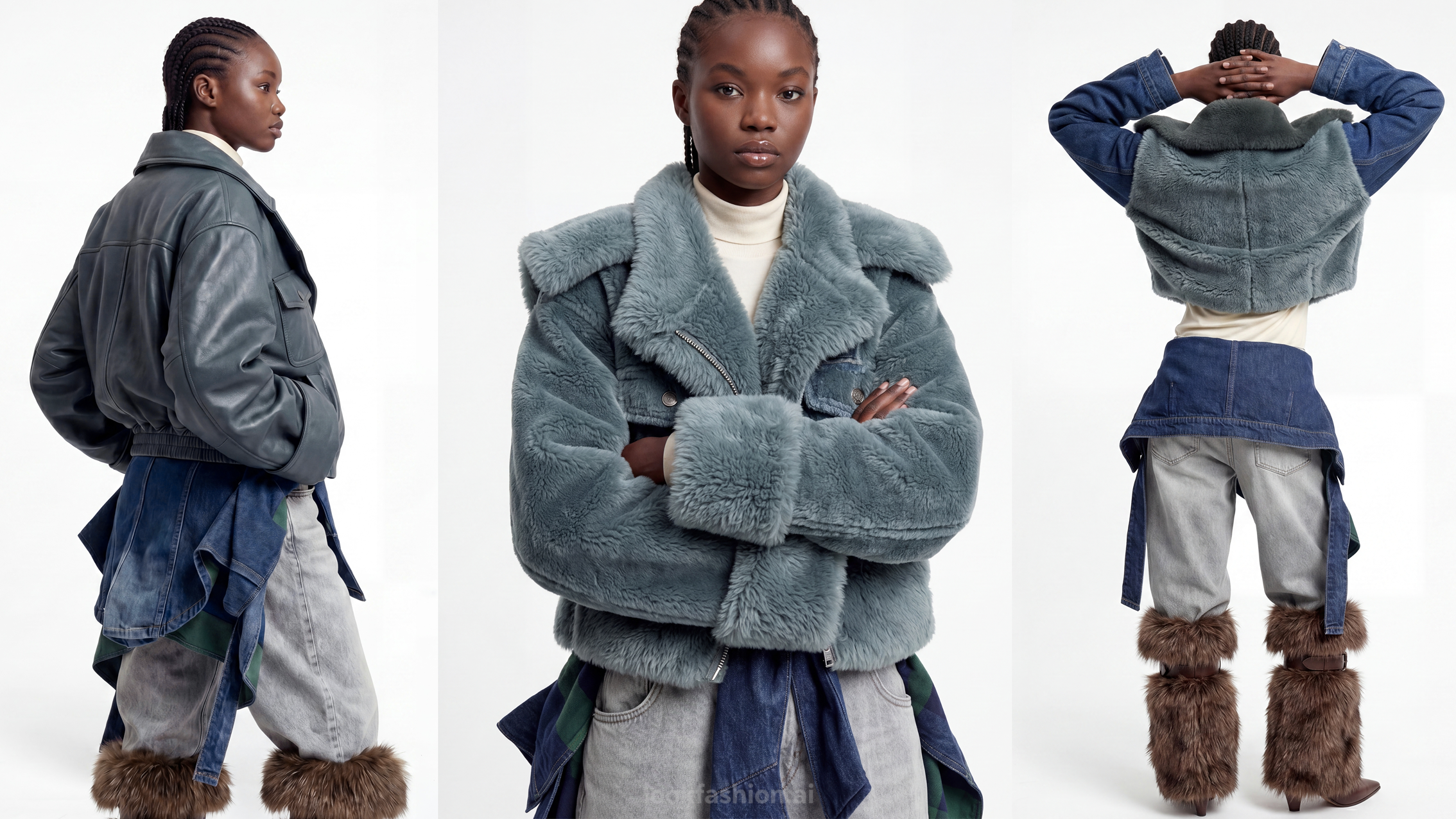
Procreate owns: Every silhouette, proportion, graphic, color direction, and creative decision starts with your sketch.
LOOK AI owns: rendering, visualization at scale, application of pattern to form, and the translation from flat sketch to styled output. Resist the temptation to let LOOK AI do the designing. Use it to show you what you've already designed, faster and more clearly than you could render it by hand.
Why Fashion Designers Combine Procreate with AI Fashion Rendering
Modern fashion designers are expected to develop concepts faster than ever while maintaining originality. Combining Procreate with AI fashion rendering allows designers to transform fashion sketches into realistic garment visualizations without disrupting their creative workflow.
Whether you're developing a fashion collection, creating client presentations, exploring colorways, testing silhouettes, or visualizing textile patterns, this workflow helps accelerate concept development while keeping every creative decision in your hands.
LOOK AI is an AI-powered fashion design platform. Learn more and start your workflow at lookfashion.ai. LOOK AI enhances that creative process through real-time AI fashion rendering. Rather than asking AI to invent a design, you're using AI to instantly visualize, refine, and communicate the ideas you've already created.